Find a quiet place in the picture
Choose a frame with space for text. A title over a busy moving subject is harder to read. Play through the intended title interval before choosing its position.
Add and personalize
- Position the sequence playhead where the title should begin.
- Open Titles and choose an Essentials preset, such as Cinematic title, Editorial, or Lower third.
- Select the new title clip in the timeline.
- Replace the sample words in the inspector’s Title text field.
- Open Font, color & layout to refine the font, color, alignment, spacing, and readability shadow.
- Adjust the title clip’s duration to leave enough reading time.
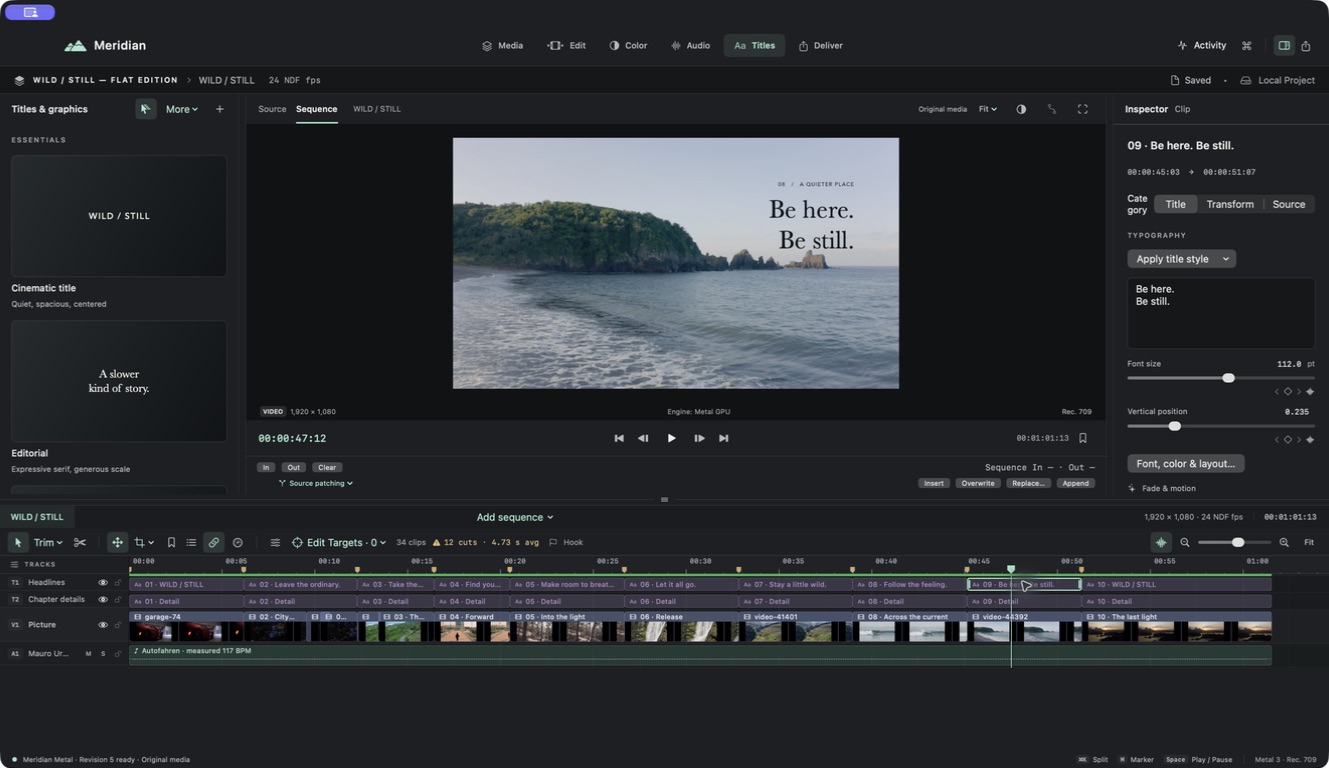
Keep it readable
Turn on the viewer’s safe-area guides and keep essential text comfortably inside the frame. Choose a text color that stays distinct from the footage throughout the shot. A subtle shadow can help, but it cannot rescue text over every background.
Presets include restrained fade or motion behavior. Preview the entrance and exit rather than stacking extra fades without checking the result.
Check at viewing size
Watch the title in motion and imagine the film on a smaller screen. Shorten the wording before shrinking the type excessively. Meridian’s current title workflow uses flat typography; experimental 3D title authoring is not part of this release.