Six views of one project
Media organizes sources. Edit assembles the timeline. Color combines scopes and corrections. Audio handles mixing. Titles provides typography and graphics. Deliver configures output. Switching workspaces does not create a new project or render a separate copy.
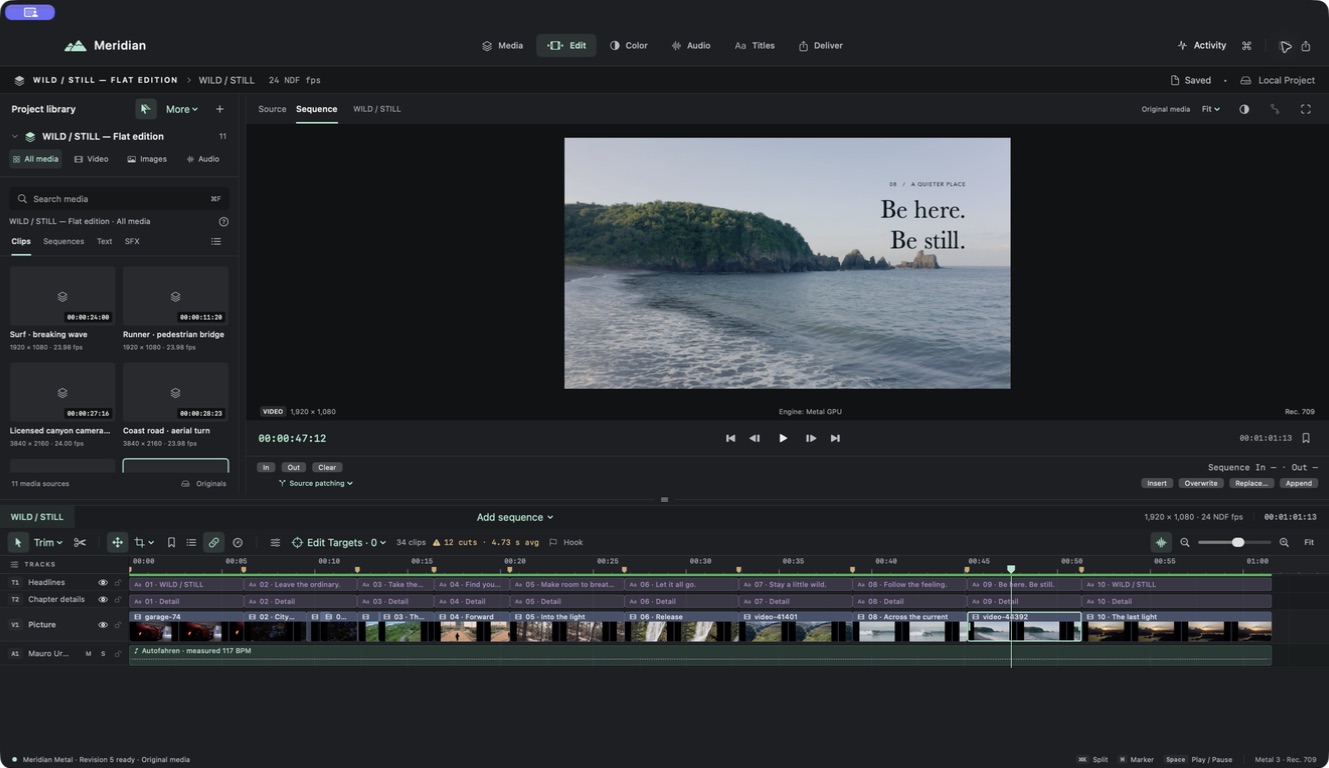
Know which context is active
The Source viewer is for inspecting and marking original media. The Sequence viewer shows the edit. Before placing media or marking a range, check the active viewer: a source range and a sequence range have different meanings.
Select the timeline item you want to change before using the inspector. Selection, playhead position, and command targeting are separate concepts. A disabled tool often means that its selection requirements are not met.
Arrange and recover the layout
Use the panel dividers to make room for the task. The timeline divider supports keyboard adjustment as well as dragging. View → Reset Workspace Layout restores the workspace layout if a panel becomes awkwardly sized.
Use Find Command (⇧⌘P) to locate a tool, and open the built-in Meridian User Guide from Help when working offline.